
Watch Folder: edit while you offload

Watch Folder keeps editing while you offload. Start an edit on a folder, then copy in more cards: the new photos are edited as they arrive, all as one session.
The app is part of Things Complete. On Things Edit, everything happens in Lightroom Classic with the plug-in.
Start a watched edit
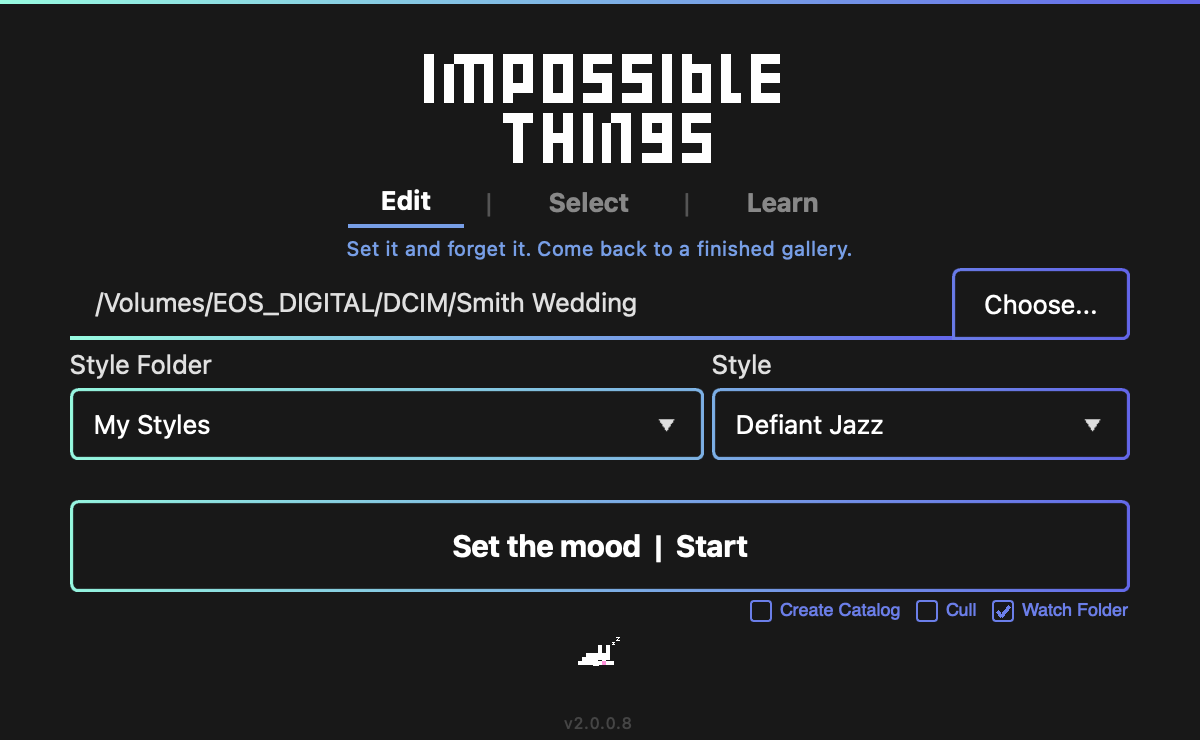
• STEP 1 – On the app's Edit tab, choose your style and the folder.
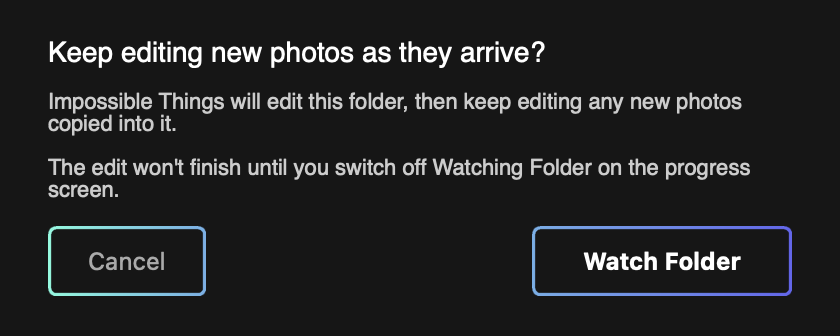
• STEP 2 – Tick Watch Folder (next to Cull). A short message explains how it works. Click Watch Folder to confirm.
• STEP 3 – Click Start. Impossible Things edits what's already in the folder, then keeps watching it.
While it's watching
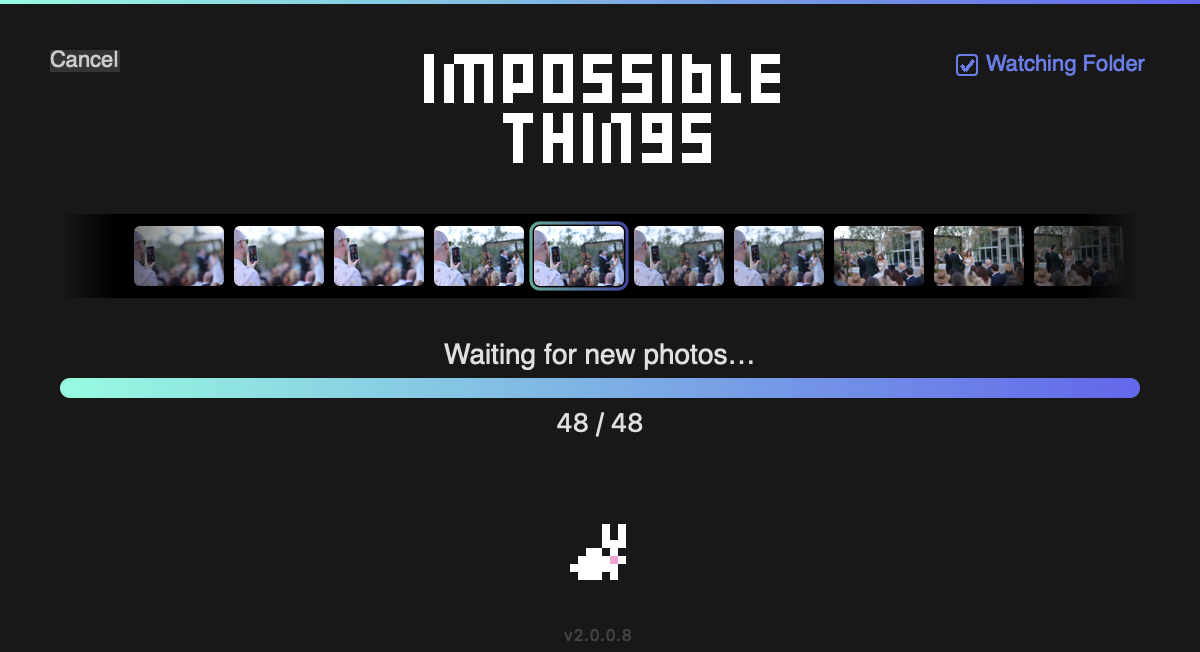
- Waiting for new photos… means it has caught up and is ready for more.
- Copy in the next card whenever you like. Photos still copying are left alone until they finish.
Finish the session
A watched edit doesn't finish on its own. When you're done, untick Watching Folder in the top corner of the progress screen. Any photos still copying are finished first.
- Create Catalog and Cull run once watching ends, over the whole session.
- Watch Folder starts unticked every time, so a normal edit never keeps running by accident.