
"No presets were found" / I can't find the Cloud Styles

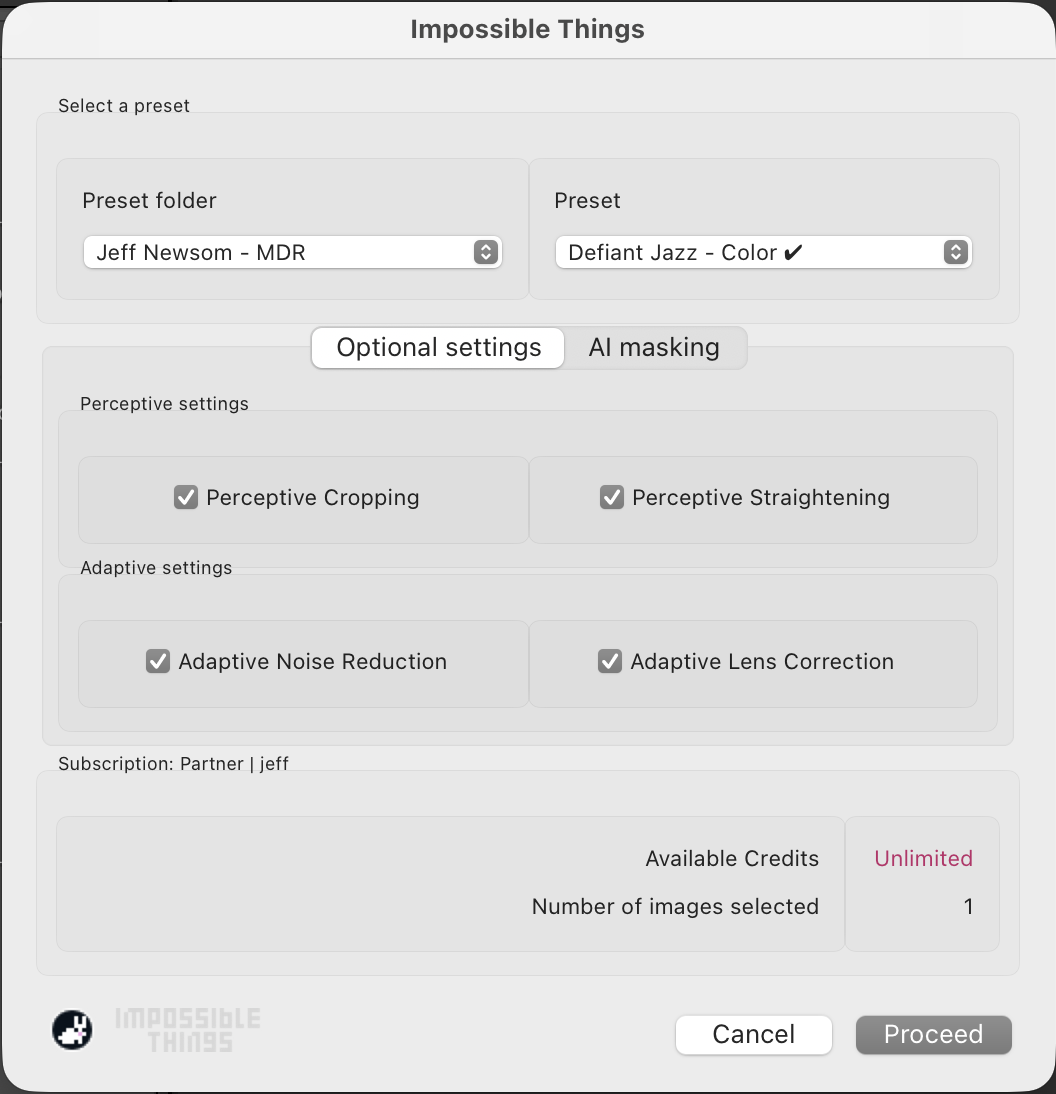
The Edit Photos dialog lists the presets Impossible Things can edit with under Preset folder and Preset. Here is what to do when that list is empty, or missing something.
Where Cloud Styles live
Cloud Styles are not Lightroom presets. They exist only in the cloud and are applied by the plug-in during an edit, so they never appear in Lightroom's Develop ▸ Presets panel and there is nothing to import or install. The only place you see them is the Preset dropdown inside File ▸ Plug-in Extras ▸ Impossible Things ▸ Edit Photos (folders "Cloud Styles - Basics" and "Cloud Styles - Premium"). If you are looking for them in the Presets panel, that is why they are not there.
"No presets were found. The plug-in will stop."
No presets are visible to the plug-in yet. Cloud Styles download automatically after you log in.
- Make sure you are logged in via File ▸ Plug-in Extras ▸ Impossible Things ▸ Account Login.
- Restart Lightroom Classic once so the Cloud Styles download.
- Open Edit Photos again.
If you have DVLOP preset packs on your account and they are not installed, run the DVLOP Installer and click Install on the packs you want.
Which presets you should see
- Subscribers see every preset installed in Lightroom, whatever its origin – purchased, downloaded or created by you. Every subscription includes all presets.
- Free and trial accounts see the Cloud Styles plus any DVLOP and Powered by DVLOP packs they own.
Camera Raw "Look" profiles are not presets and are not listed.
My own preset isn't listed
- Restart Lightroom Classic and open Edit Photos again.
- Check the preset is installed as a Develop preset: in the Develop module, look for it in the Presets panel. If it is only in the Profile Browser, it is a profile, not a preset.
- Pick the right Preset folder first – the dialog lists presets by folder.
If it is installed as a Develop preset and still does not appear, contact support with your account email and the preset's name and folder.